




Pour « chemin C:\Boot introuvable », protégez d’abord les données originales. Un message indiquant que le chemin C:\Boot est introuvable ne prouve pas que les fichiers de démarrage ont disparu. Dans l’environnement de récupération, votre installation Windows peut porter la lettre D: ou E: au lieu de C:. Avant de créer un dossier ou de reconstruire le BCD, trouvez le volume qui contient réellement Windows. Si des données importantes ne sont pas sauvegardées, protégez-les avant toute commande qui écrit sur le disque.
chemin C:\Boot introuvable : diagnostic sans risque
La lettre d’un lecteur dépend du système actuellement démarré. Le Windows utilisé au quotidien se réserve généralement C:. WinRE, une clé d’installation ou Windows PE réattribue cependant les lettres selon sa propre détection. La clé USB peut devenir C: et pousser la partition Windows vers D:. La commande visant C:\Boot échoue alors parce qu’elle examine le mauvais volume.
Le type de micrologiciel compte aussi. Un ordinateur UEFI conserve habituellement ses fichiers de démarrage sur une petite partition système EFI, souvent sans lettre dans Windows. Une ancienne configuration BIOS/MBR suit une autre organisation. Dans aucun de ces cas, la simple création d’un dossier C:\Boot vide ne fabrique un magasin BCD valide.
Relevez ce qui a précédé l’erreur. Une clé de réparation fraîchement branchée favorise l’hypothèse d’une lettre différente. Un clonage, une conversion GPT/MBR, un changement de partition ou une mise à jour interrompue peut avoir modifié le chemin de démarrage. Si le disque disparaît du firmware, change de capacité ou produit des erreurs de lecture, sa stabilité devient plus urgente que le BCD.
Cartographiez les volumes sans modifier leur contenu
Depuis l’Invite de commandes de WinRE, lancez diskpart, puis list disk et list volume. Terminez par exit. Ces commandes d’inventaire permettent de comparer capacité, système de fichiers, étiquette, type et lettre actuelle. N’utilisez pas clean, format, convert, delete ou create pendant cette phase.
Interrogez ensuite les lettres plausibles, par exemple avec dir D:\Windows. Une installation cohérente réunit généralement Windows, Users et Program Files. Examinez les noms de profils et les dates dans Users. Ils permettent de distinguer votre installation active d’une partition de restauration constructeur ou d’un ancien Windows conservé après une migration.
Ne vous fiez ni à la taille ni au nom seuls
Deux partitions peuvent avoir des tailles proches, et une image constructeur peut contenir un dossier Windows. Recherchez des preuves concordantes : comptes attendus, projets récents, arborescence système complète et date des dernières modifications. Photographiez ou notez la liste des volumes. Vous pourrez ainsi revenir à l’état observé si une étape ultérieure attribue temporairement une lettre.
Un volume BitLocker verrouillé n’est pas vide
WinRE peut voir le disque tout en bloquant son contenu chiffré. Ne l’initialisez pas. Procurez-vous la clé de récupération BitLocker liée à ce PC et déverrouillez le volume avec les outils Windows appropriés. Un logiciel de récupération de fichiers ne contourne pas le chiffrement et ne remplace pas les identifiants requis.
Décidez si le support est assez stable pour continuer
Un chemin erroné avec un disque constamment visible suggère une difficulté logique. À l’inverse, des déconnexions, des clics, une capacité incohérente ou de graves erreurs d’entrée-sortie signalent un risque matériel. Éteignez l’ordinateur au lieu de répéter Réparation du démarrage, CHKDSK ou des analyses profondes. Une image secteur ou un laboratoire devient préférable lorsque les fichiers sont irremplaçables.
Retirez les supports externes non essentiels afin de simplifier l’ordre de démarrage, mais identifiez d’abord le disque de sauvegarde pour ne pas le confondre avec la source. Vérifiez les câbles uniquement par un essai contrôlé avec une connexion connue. Multiplier les branchements d’un disque mécanique instable peut aggraver son état sans apporter de diagnostic fiable.
Pour un code accompagné d’erreurs d’E/S, consultez le diagnostic distinct de l’erreur 0xc00000e9. Si aucun disque amorçable n’apparaît, la page sur le périphérique de démarrage non détecté couvre cette situation matérielle. Une demande de clé ou de DVD relève plutôt du support d’installation ou de récupération Windows.
Mettez les fichiers personnels à l’abri avant la réparation
Contrôlez les sauvegardes disponibles : Historique des fichiers, stockage cloud, disque externe, image système et exports récents. Ouvrez quelques fichiers depuis un autre appareil. Une sauvegarde ancienne ou illisible ne protège pas les modifications récentes.
Si WinRE lit le bon dossier Users, copiez d’abord les documents, photos et projets irremplaçables vers un disque sain. Conservez les dossiers de projet complets, car une base de données, un montage ou une application peut dépendre de plusieurs fichiers voisins. Comparez les tailles et ouvrez des échantillons après la copie.
Prévoyez suffisamment d’espace sur la destination. Une copie interrompue par manque de place peut sembler complète dans l’Explorateur. Pour les archives, testez leur intégrité. Pour les vidéos, lisez le début, un passage central et la fin. Pour les documents longs, contrôlez plusieurs pages et les pièces jointes éventuelles.
Récupérez les données inaccessibles avec Drecov
PandaOffice Drecov est un logiciel Windows de récupération de données pour PC, HDD, SSD, disques externes, clés USB, cartes SD et cartes mémoire. Ici, son rôle précis consiste à extraire des fichiers personnels depuis un stockage stable avant de modifier les structures de démarrage. Son mode de récupération en lecture seule, Quick Scan, Deep Scan, les filtres, l’aperçu et l’enregistrement vers une destination saine soutiennent cette opération. Lost Partition Recovery s’applique lorsqu’une partition a disparu ; Crashed PC Recovery correspond aux scénarios de PC qui ne démarre plus. Drecov ne répare ni le matériel, ni le BCD, ni BitLocker, et ne garantit pas les données écrasées.
⚠ Avertissement : installez Drecov sur un autre disque que celui où les données ont été perdues afin d’éviter de les écraser.
Préparez un autre disque sain. N’installez pas le logiciel sur la partition qui contenait les fichiers perdus. Arrêtez toute analyse si le périphérique devient instable.
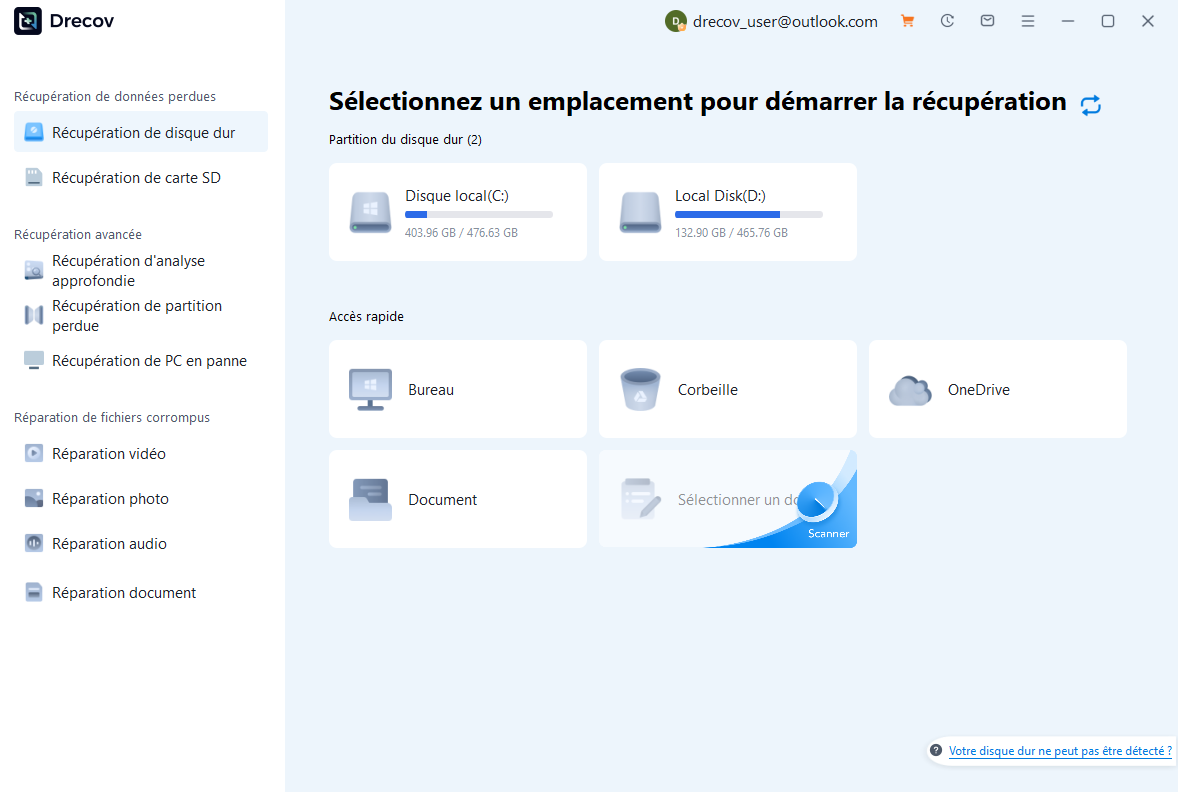
Step 1 : ouvrir Drecov et choisir l’emplacement Windows d’origine
Cette vérification est particulièrement utile pour « chemin C:\Boot introuvable ». Lancez Drecov depuis un Windows fonctionnel. Sélectionnez le disque physique ou la partition qui contenait le profil utilisateur, après comparaison du modèle et de la capacité. Choisissez Lost Partition Recovery si la partition n’existe plus dans la carte des volumes.
Step 2 : lancer Quick Scan et examiner l’ancien profil
Commencez par Quick Scan. Recherchez l’ancien dossier Users et des noms de fichiers distinctifs. Comparez chemin, type, taille et date pour écarter les copies anciennes ou sans rapport.
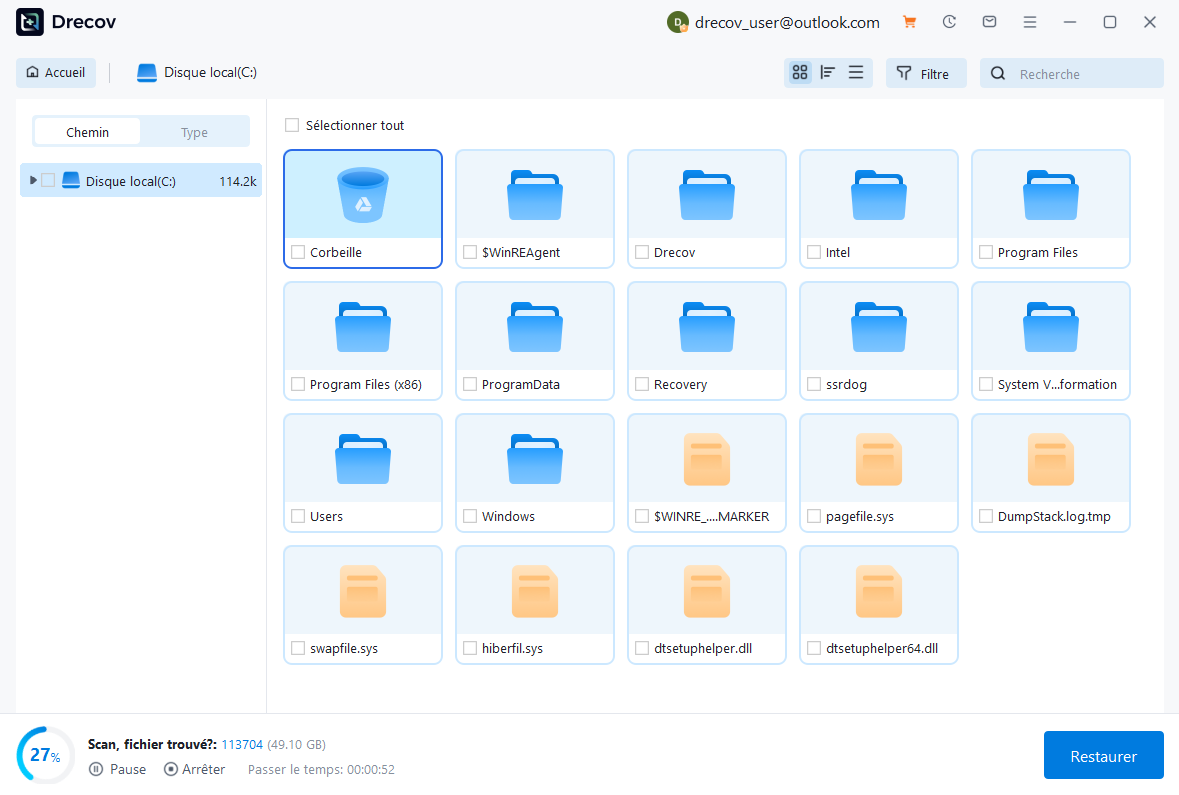
Step 3 : réserver Deep Scan à une source encore stable
Utilisez Deep Scan si Quick Scan ne retrouve pas les éléments requis et si la lecture reste régulière. Cette recherche peut présenter des fichiers sans leur arborescence d’origine. Interrompez-la en cas de nouvelles erreurs graves ou de déconnexion.
Step 4 : filtrer et prévisualiser plusieurs candidats
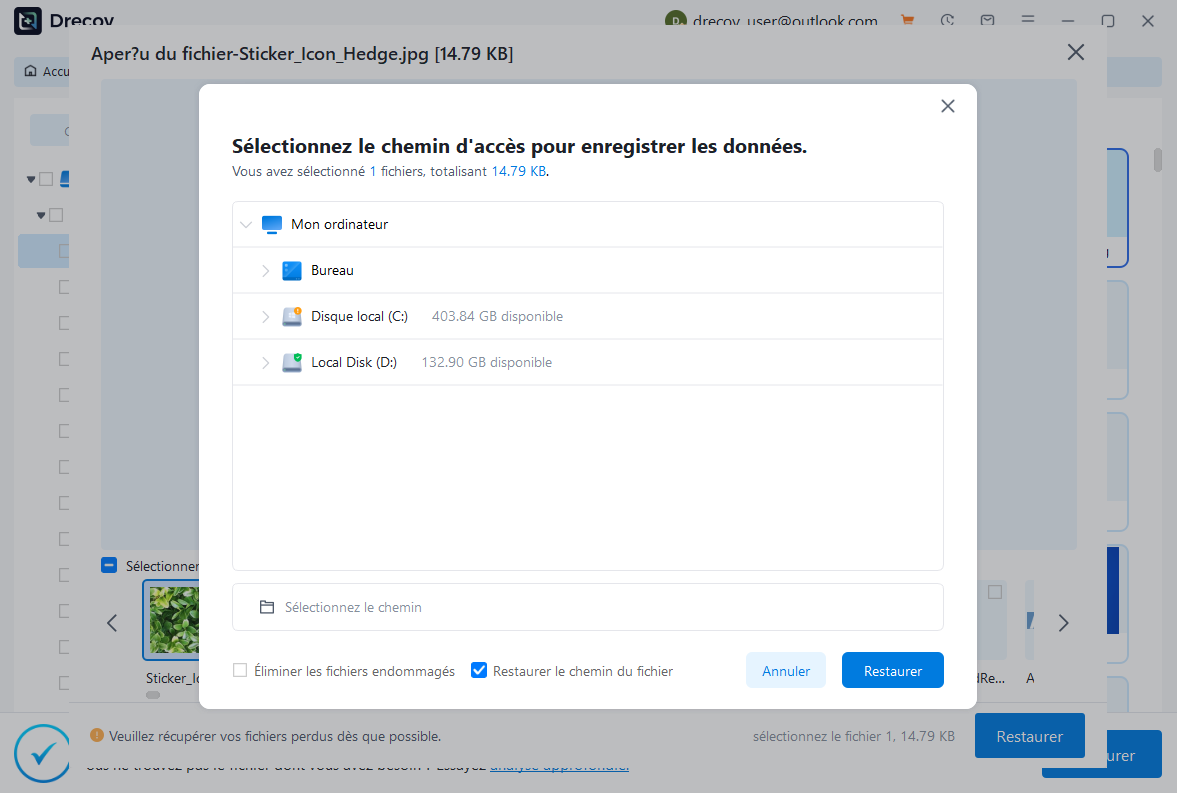
Filtrez par ancien chemin, nom, extension, taille ou période. L’aperçu de plusieurs fichiers pris en charge aide à choisir. Il ne certifie toutefois pas chaque page, image vidéo, membre d’archive ou dépendance d’un projet.
Step 5 : restaurer vers l’autre disque sain
Enregistrez les éléments sélectionnés sur la destination préparée, jamais sur la source. Vous évitez ainsi d’écraser d’autres données récupérables. Si la sortie n’apparaît pas à l’endroit attendu, vérifiez Drecov Folder ou Recovery Folder.
⚠ Avertissement : installez Drecov sur un autre disque que celui où les données ont été perdues afin d’éviter de les écraser.
Step 6 : ouvrir les résultats avant de toucher au démarrage
Contrôlez des échantillons de chaque catégorie depuis le disque de destination. Gardez la source inchangée tant que les fichiers importants ne sont pas lisibles et cohérents.
Reconstruisez le démarrage sur les volumes confirmés
Une fois les données vérifiées, essayez d’abord Réparation du démarrage. Si elle échoue sur un support stable, BCDBoot peut recopier les fichiers nécessaires. La documentation officielle de BCDBoot demande d’identifier la partition Windows et la partition système. Si l’installation vérifiée se trouve sur D:, la source logique est D:\Windows, pas C:\Windows par habitude.
La destination diffère entre UEFI et BIOS/MBR. N’attribuez une lettre temporaire à la partition EFI que dans le cadre d’une procédure documentée. Notez le volume choisi, relisez la commande et conservez le message obtenu. En cas d’échec, revenez à la cartographie au lieu d’enchaîner des instructions destinées à une autre configuration.
Repoussez CHKDSK après la récupération. Il modifie le système de fichiers et ne récupère pas les données. Évitez également de combiner reconstruction du BCD, changement de partition active, conversion, formatage et réinstallation dans un seul essai. Une seule modification à la fois permet de comprendre le résultat et de revenir en arrière.
FAQ
Pourquoi Windows devient-il D: dans WinRE ?
WinRE attribue ses propres lettres. La clé de récupération ou une autre partition peut prendre C:, sans que votre installation soit déplacée.
Créer C:\Boot résout-il le problème ?
Non. Un dossier vide ne contient ni magasin BCD valide ni entrée de micrologiciel. Il faut identifier les partitions puis utiliser l’outil adapté.
Puis-je lancer BCDBoot avant la sauvegarde ?
La commande écrit des fichiers de démarrage. Si le disque conserve l’unique copie de données importantes, copiez ou récupérez celles-ci d’abord.
Le message annonce-t-il une panne du SSD ?
Pas à lui seul. Une lettre différente suffit à l’expliquer. Les disparitions, capacités incohérentes et erreurs de lecture renforcent l’hypothèse matérielle.
Drecov peut-il réparer le BCD ?
Non. Drecov récupère des fichiers depuis un stockage adapté. Les outils Windows réparent ensuite la configuration de démarrage.
Conclusion
Face à un chemin C:\Boot introuvable, ne forcez pas une commande vers C:. Identifiez l’installation par son contenu, vérifiez la stabilité du disque et protégez les fichiers qui n’existent nulle part ailleurs. Drecov peut récupérer ces données depuis une source logique stable vers un autre support. Après leur vérification, Réparation du démarrage ou BCDBoot peut intervenir sur les volumes réellement confirmés.
⚠ Avertissement : installez Drecov sur un autre disque que celui où les données ont été perdues afin d’éviter de les écraser.





